
What Is RevBoost Quotation Manager?
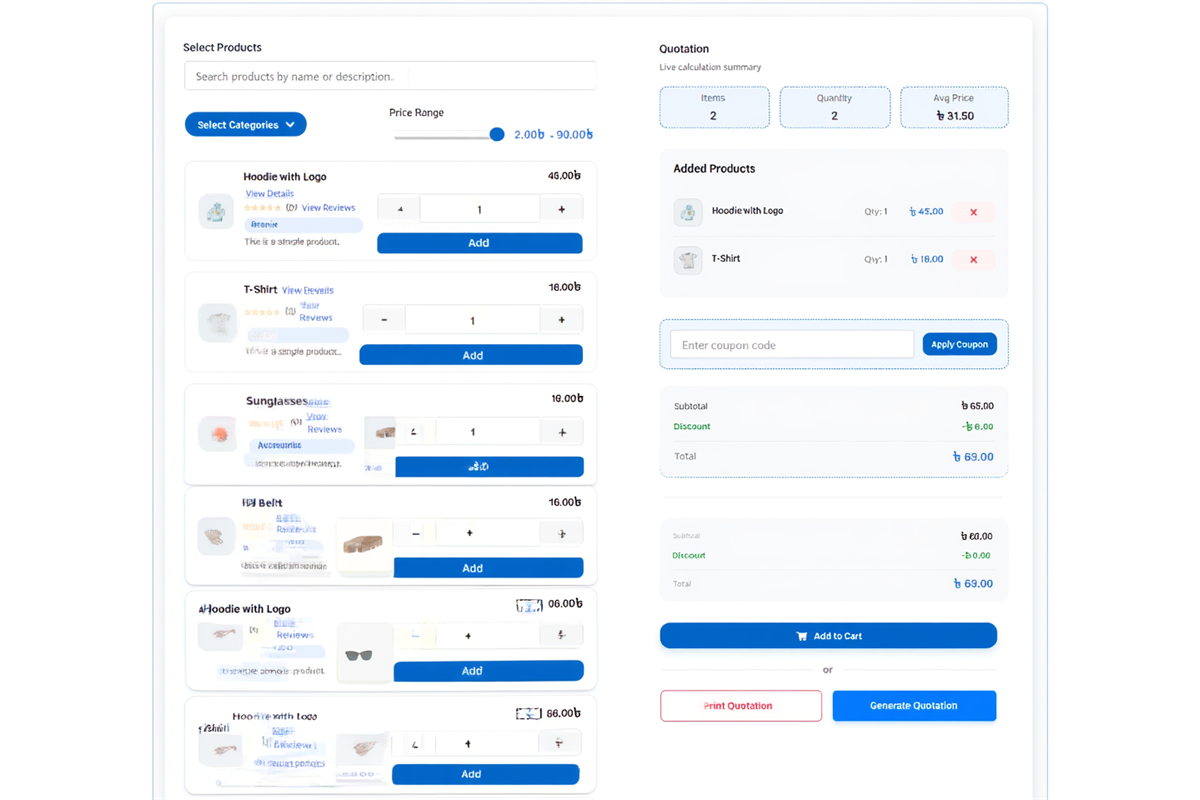
RevBoost Quotation Manager for WooCommerce — built to revenue boost your WooCommerce store by turning quote requests into confirmed orders. Customers browse your products, select quantities, apply discounts and coupons, and submit a formal quote request — all from a single page, without touching the default WooCommerce checkout.
Once they submit, you review the request in your admin, apply any extra discount, adjust pricing, and send back a professional branded quotation. From the same admin screen, you can also directly convert the quote into a WooCommerce order with one click — no re-entering data.
Key Revenue Boost Benefits
- Capture leads before they are ready to buy — the quote form lets price-sensitive B2B customers engage without committing to checkout
- Faster sales cycle & revenue boost — Quick Add to Cart and Quick Place Order turn a quote into a live order in seconds
- Professional impression — branded printable quotations with your logo and brand color build trust with wholesale buyers
- No coding needed — everything is managed from the WordPress admin panel using simple settings and shortcodes
Available Shortcodes
The plugin provides two shortcodes. Place them on any WordPress page using a Shortcode block in the Gutenberg editor.
📋 Main Quotation Form — Full Product Catalog
Shows the complete interactive quote builder: product search, category & price filters, quote basket, live price calculation (subtotal → discount → coupon → tax → shipping → grand total), and customer info form. Best for B2B buyers who know your products.
📝 Simplified RFQ Form — No Catalog
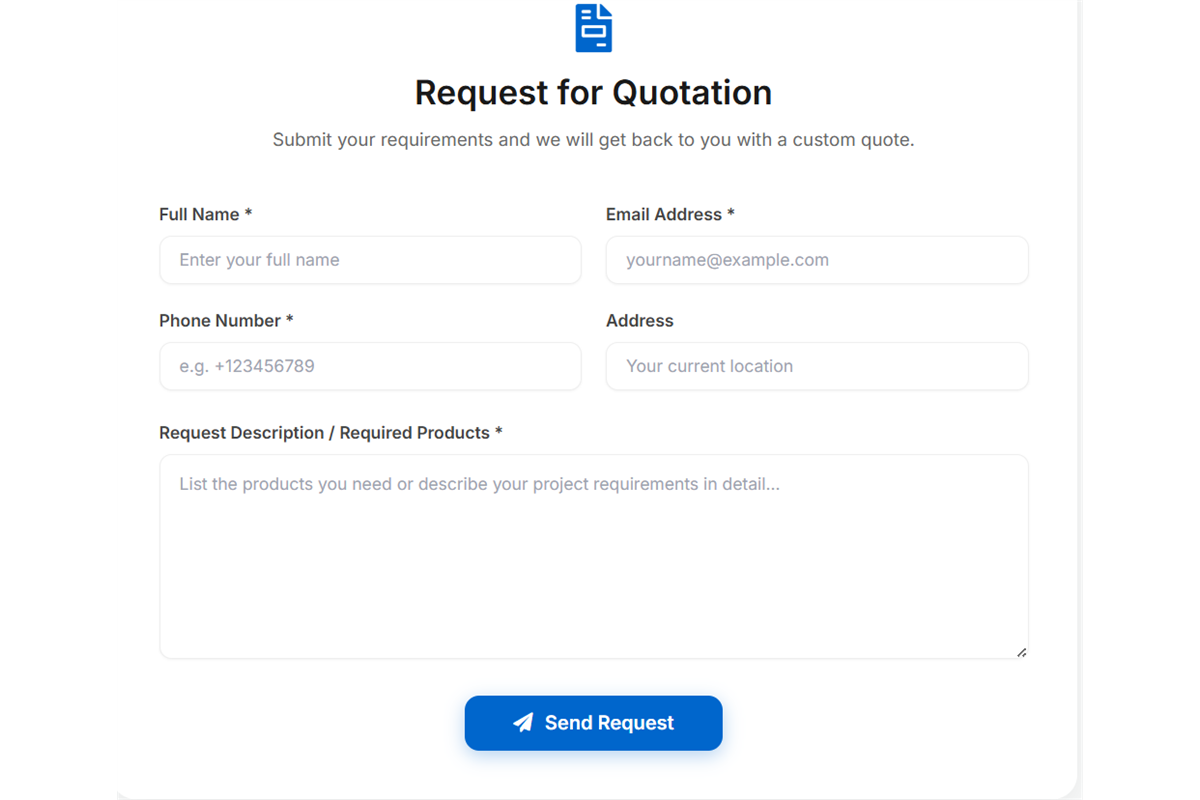
A minimal enquiry form — no product catalog, no prices shown. Customers describe what they need in a text area. Ideal for custom orders, services, or when you do not want to display prices publicly.
| Shortcode | Best For | Shows Prices? |
|---|---|---|
[bluepiquote_form] |
Wholesale, B2B, repeat buyers who know your catalog | Yes — live calculation |
[bluepiquote_request_form] |
Custom work, services, non-catalog enquiries | No — description only |
Setting Up Your Quote Pages
Create a WordPress page and insert the shortcode using the Gutenberg block editor.
- Go to Pages → Add New Page in your WordPress admin.
- Give the page a descriptive name — e.g. Request a Quote, Get Wholesale Pricing, or B2B Orders.
- In the right sidebar under Template, select Full Width — the quote form needs horizontal space to display correctly.
- Click + to add a block, search for Shortcode, and select it.
- Paste your chosen shortcode into the block:
[bluepiquote_form]or[bluepiquote_request_form]. - Click Publish, then visit the page to confirm the form displays.
You can create multiple pages — one with the full catalog form for trade buyers and another with the simplified RFQ form for custom enquiries — and link both from your navigation menu.
Revenue Boost Features — Quote to Order
These are the features that directly convert quote requests into confirmed orders and increase average order value. The full product catalog form ([bluepiquote_form]) powers all of these — designed to revenue boost every stage of your B2B sales funnel.
Quick Add to Cart
Customers add products to the WooCommerce cart directly from the quote form — without visiting individual product pages. They select quantities, apply a coupon, and add everything to cart in one step. The standard WooCommerce checkout completes the purchase.
⭐ Premium FeatureQuick Place Order
Convert a quote into a live WooCommerce order with a single click — without going through the checkout flow at all. The customer's quote (products, quantities, pricing, shipping, discount) becomes a pending WooCommerce order instantly. Perfect for B2B buyers who reorder regularly.
⭐ Premium FeatureWooCommerce Coupon Support
A coupon code input is built into the quote form. Customers apply any active WooCommerce coupon and the discount is deducted from the live total instantly — no page reload. This works in both the quote form and the final printable quotation.
Free FeatureLive Product Search & Filters
As customers type, the product catalog updates in real time — no page reload. Category dropdown and min/max price filters help buyers find exactly what they need from large catalogs without scrolling. Variable products show all variations with individual prices.
Free FeatureProduct Detail Popup
Customers click any product in the catalog to open a popup with the full product description, images, attributes, and pricing — without leaving the quote builder. Reduces friction, answers product questions, and keeps buyers engaged in the quote flow.
⭐ Premium FeatureStar Ratings on Quote Form
Customer review star ratings are shown directly on each product card in the quote catalog. Social proof at the point of product selection — buyers see which products are highly rated without leaving the form, increasing confidence and conversion.
⭐ Premium FeatureDiscount & Pricing Controls
RevBoost Quotation Manager gives you full control over pricing inside the quote — separate from WooCommerce's standard pricing. This is essential for B2B businesses that negotiate pricing.
Admin Discount (You Apply, Per Quote)
When creating or reviewing a quote in the admin panel, you can apply a custom discount to that specific quote:
- Percentage discount — e.g., 15% off the subtotal for a loyal wholesale customer
- Fixed amount discount — e.g., $50 off for an order above a threshold
- Set a default discount value in Settings (pre-filled for every new quote), or leave it at 0 to set per quote manually
- Toggle the discount field on/off in Settings → General → Enable Discount Feature
Customer Coupon Code
The [bluepiquote_form] includes a coupon input. Any active WooCommerce coupon works here. The discount applies to the live total in real time and is shown separately in the price breakdown. It also appears in the printed quotation.
Live Price Breakdown in the Quote Form
As items are added, the quote basket shows a live calculation with every component itemized:
| Line Item | Source | Configurable? |
|---|---|---|
| Subtotal | Sum of product prices × quantities | Auto |
| Admin Discount | % or fixed — set per quote or as default | Yes — Settings → Discount |
| Coupon Code | Any active WooCommerce coupon | Customer applies it |
| Tax | Pulled from WooCommerce tax settings | Toggle on/off in Settings |
| Shipping Cost | Manual entry per quote | Toggle on/off in Settings |
| Extra Fee | Packaging, handling, installation charges | Toggle on/off in Settings |
| Grand Total | Calculated automatically | Auto |
Branded Printable Quotation
Every quote can be printed or emailed as a professional document showing:
- Your company logo (top-left) and brand color (header, table accents)
- Customer name and contact details
- Full product table — item, quantity, unit price, line total
- Complete price breakdown: subtotal, discount, coupon, tax, shipping, extra fees, grand total
- Premium: signature section, disclaimer text, company address on the document
Upload your logo and set your brand color under Quote Manager → Settings → Print.
Admin Panel — Managing Quotes
After installation, a Quote Manager menu appears in your WordPress admin sidebar with four sections:
| Menu Item | What It Does |
|---|---|
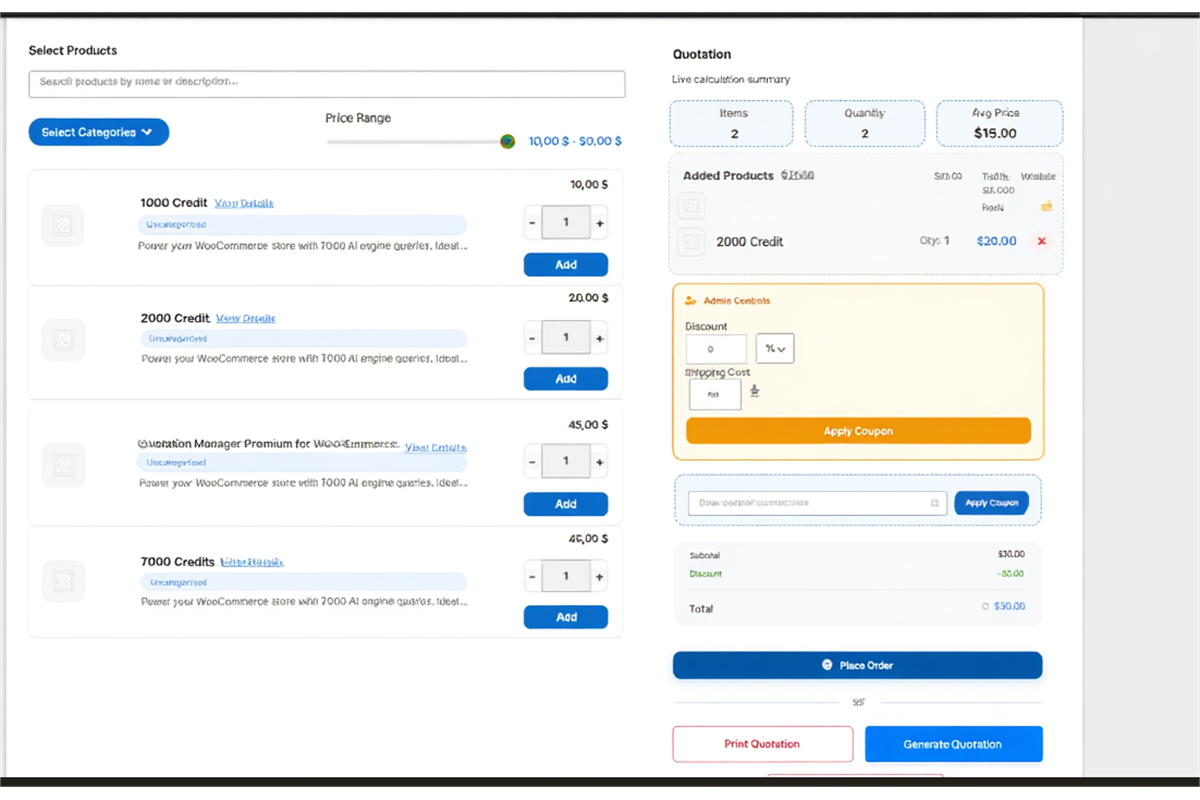
| Create Quote | Build a quote manually from the admin side — same interface as the frontend. Use this for orders received by phone or email. You can apply discounts, add shipping, adjust pricing, then print or email the quote. |
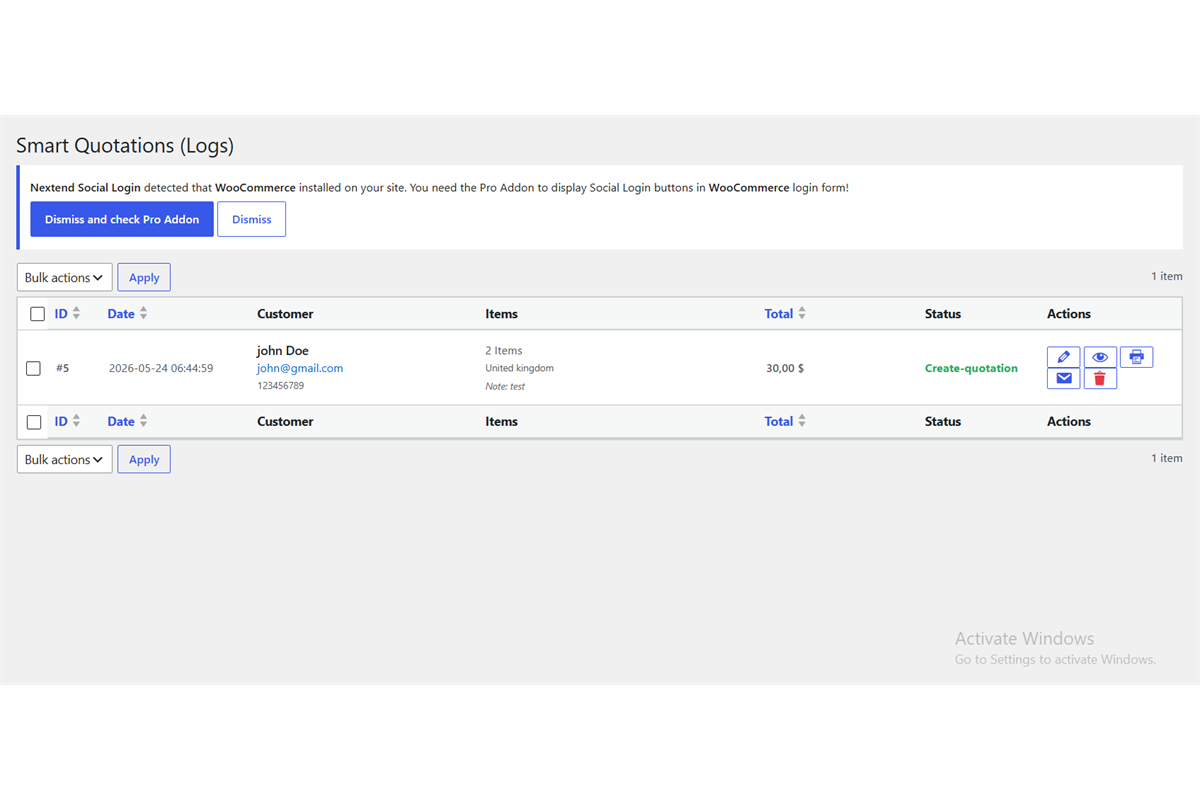
| All Quotes | Every customer submission and manually created quote — with customer name, email, phone, status, and date. Click View to open the full details, print, or email the quotation. |
| ShortCode | Quick reference page showing both shortcodes with copy buttons. |
| Settings | All plugin configuration — 5 tabs covering features, discounts, form labels, emails, and print branding. |
Creating a Quote from the Admin
- Go to Quote Manager → Create Quote.
- Search for and add products. Adjust quantities with the +/− buttons.
- Apply a discount amount (% or fixed) in the calculation panel.
- Enter shipping cost and any extra fees if applicable.
- Fill in the customer's name, email, phone, and address.
- Click Print Preview to check the branded quotation document.
- Click Generate Quotation to save it to All Quotes.
- Click Email Quote to send the quotation directly to the customer.
Settings Guide
All settings are at Quote Manager → Settings — five tabs:
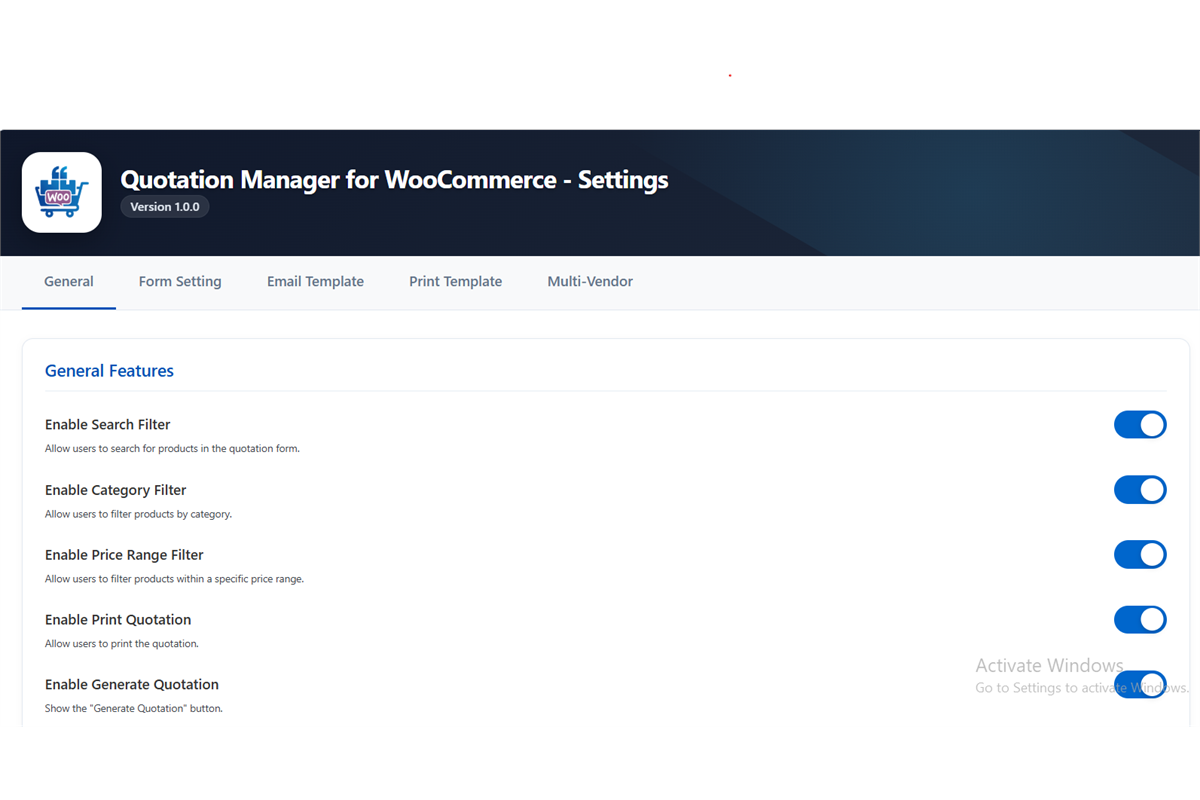
General Tab — Feature Toggles
| Toggle | Default | What It Controls |
|---|---|---|
| Enable Search Filter | ON | Live search bar on the product catalog |
| Enable Category Filter | ON | Category dropdown to filter products |
| Enable Price Range Filter | ON | Min/max price filter — great for large catalogs |
| Enable Print Quotation | ON | Print and Print Preview buttons on the quote form |
| Enable Generate Quotation | ON | The main Save/Generate button — keep ON |
| Enable Discount Feature | ON | Discount input field on the quote form and admin |
| Enable Tax Feature | ON | Tax line in the price breakdown (uses WooCommerce tax) |
| Enable Shipping Cost | ON | Shipping cost input in the calculations panel |
| Enable Extra Fee | ON | Additional fee field — packaging, handling, installation |
Discount Tab
| Setting | Options | How to Use |
|---|---|---|
| Discount Type | Percentage / Fixed Amount | Choose whether the discount is a % (e.g., 10%) or a flat amount (e.g., $50). Can be changed per quote when creating from admin. |
| Discount Value | Number (default: 0) | Pre-fills a default discount on every new quote. Set to 0 to enter manually per customer. |
Form Tab — Labels & Text
Customize all visible text in both forms — title, description, field labels, placeholder text, and the submit button. Each field (Name, Email, Phone, Address, Description) can be toggled on/off and renamed independently.
Email Tab
| Setting | Details |
|---|---|
| Sender Name | The "From" name on all plugin emails. Default: {company_name} Team — auto-uses your WordPress site name. |
| Quotation Email Subject | Sent when you click "Email Quote" from admin. Default: Your Quotation #{quotation_id} from {company_name} |
| Auto-Response Email | Sent automatically to the customer on form submit. Toggle ON/OFF. Subject default: We received your request #{request_id} |
Available tags: {quotation_id} | {request_id} | {company_name}
Print Tab — Branding
| Setting | Details |
|---|---|
| Company Logo | Upload PNG, JPG, or GIF. Recommended: 300×150px or larger. Max 2MB. Appears top-left on every printed quotation. |
| Brand Color | Color picker — applied to quotation header, table header, and accent borders. Default: #0066cc. Use your brand's hex code. |
Frequently Asked Questions
Do customers need a WordPress account to submit a quote?
No. Both forms work for any visitor, logged in or not. Customers fill in their contact details in the form and submit — no account registration required.
Where do I see submitted quote requests?
Go to Quote Manager → All Quotes. Every submission shows the customer name, email, phone, status, and date. Click View to open the full details, pricing breakdown, and options to print or email the quotation.
How is Quick Place Order different from Quick Add to Cart?
Quick Add to Cart puts all quote items into the WooCommerce cart and sends the customer to the standard checkout page to complete payment. Quick Place Order skips checkout entirely — it converts the quote directly into a pending WooCommerce order in one click, ideal for B2B buyers who have pre-arranged payment terms. Both are Premium features.
Can I apply both an admin discount and a coupon code to the same quote?
Yes. Both are shown as separate line items in the price breakdown — the admin discount is applied first, then the WooCommerce coupon is deducted from the discounted subtotal. The final grand total reflects both.
Does variable product support work? (e.g., different sizes and colors)
Yes. Variable products appear in the quote form catalog with all their variations. Each variation shows its specific attributes (size, color, etc.) and individual price. Customers add specific variations to their quote basket.
Can customers apply WooCommerce coupon codes on the quote form?
Yes. The [bluepiquote_form] has a built-in coupon input. Any active WooCommerce coupon is valid. The discount is applied instantly to the live total and appears in the printable quotation document.
What does the printable quotation look like?
A professional branded document with your company logo, brand color, customer contact details, a product table with quantities and prices, and a full price summary (subtotal, discount, coupon, tax, shipping, extra fees, grand total). Print using your browser (Ctrl+P / Cmd+P) and select "Save as PDF" to create a PDF. Premium adds signature section, disclaimer text, and company address.
Does the plugin slow down my website?
No. Scripts and styles only load on pages where the shortcode is placed — zero impact on other pages. All product search and filtering uses AJAX, keeping interactions fast without full page reloads.
Help & Support
| Resource | Location |
|---|---|
| Live Demo | revboostlab.com/demo-quotation-manager |
| Premium Upgrade | revboostlab.com/pricing-quotation-manager |
| Support Email | support@revboostlab.com |
| Settings | WordPress Admin → Quote Manager → Settings |
| Shortcode Reference | WordPress Admin → Quote Manager → ShortCode |
| All Submitted Quotes | WordPress Admin → Quote Manager → All Quotes |